Enigma Device Setup
How to Set Up IPTV on Enigma Device
Last updated: October 2026
This guide explains how to set up IPTV on Enigma2-based set-top boxes such as VU+, Dreambox, and Octagon. Enigma2 uses a portal URL or playlist from your IPTV provider. You will need the portal URL, and possibly username/password, before starting.
Need an IPTV subscription with Enigma support? Compare plans.
View IPTV PlansRecommended Method: Portal URL
Most Enigma2 IPTV setups use a portal URL—a server address your provider gives you. You enter it in the receiver's menu, restart, and the channel list loads. Some providers use M3U playlists with plugins like E2m3u2bouquet. Check your provider's Enigma/MAG instructions for the exact URL format.
UK IPTV setup — apps, Firestick, trial
UK IPTV setup is smoother when you line up the right device path, a trusted player app, and a simple way to trial before you commit. Useful next reads: best IPTV for Firestick UK, IPTV apps UK for Smart TV, start IPTV free trial UK, and IPTV on Firestick UK. When you want line-ups and pricing in one place, see our IPTV plans in the UK.
Explore Channels Inside the IPTV App
Preview how IPTV channels are organized inside the streaming app. Click Live TV, Movies, or Series to explore categories and see how the interface works before subscribing.

Other devices? See our MAG Device, Firestick, Android, or Smart TV guides.
Step-by-Step: Set Up IPTV on Enigma Device
Step 1
Get Your Enigma Portal URL from Your Provider
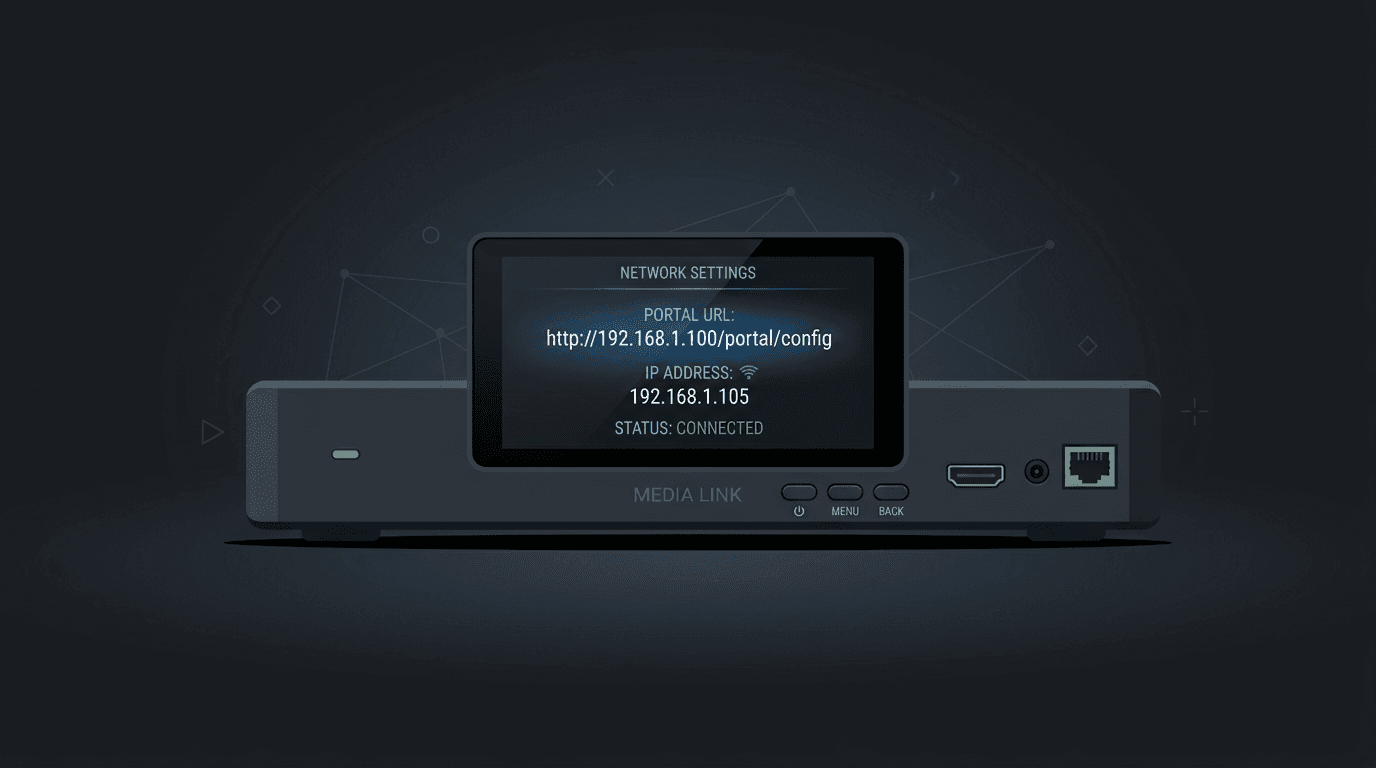
Your IPTV provider will supply a portal URL for Enigma2 devices. It typically looks like http://server.com:port/c/ or similar. You may also need a username and password. Keep this information handy.
Step 2
Access the Receiver Menu
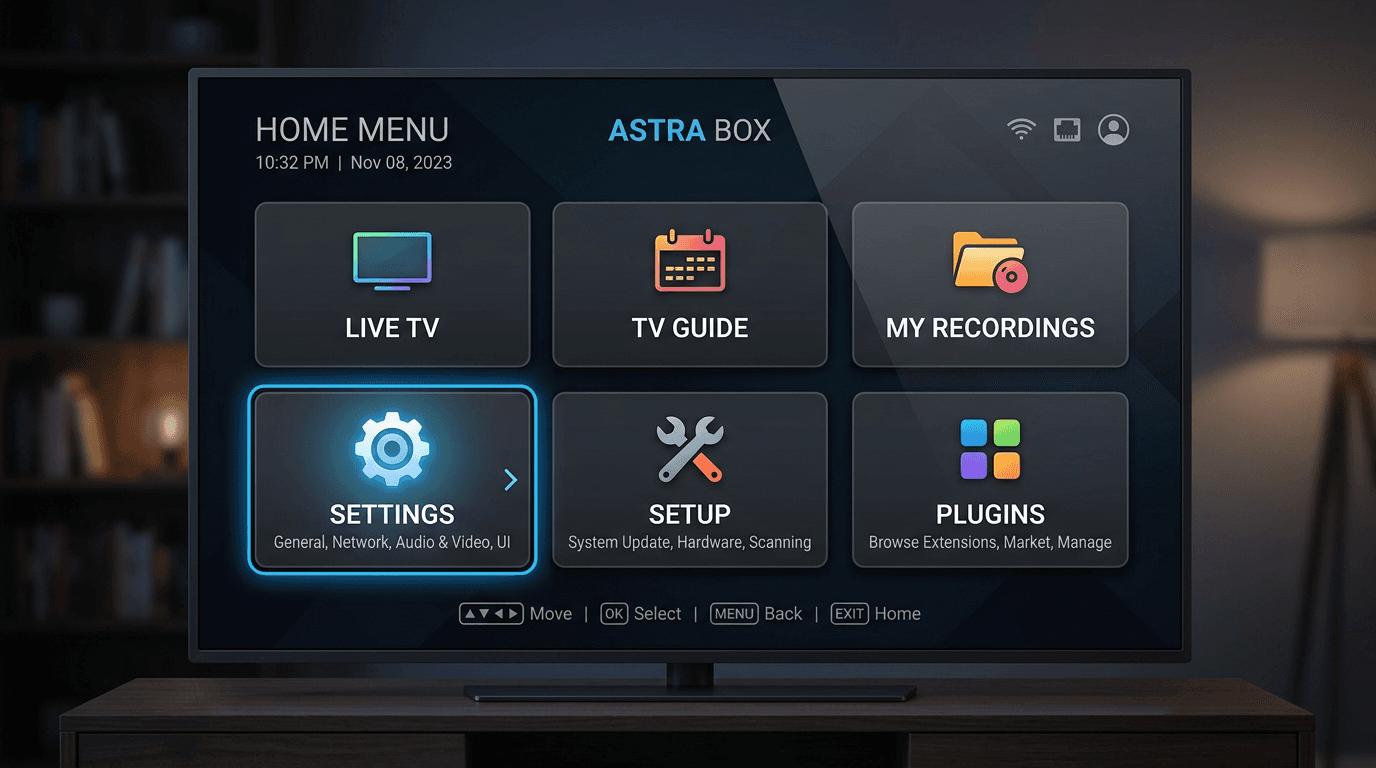
Using your Enigma2 remote, go to the main menu. The exact path varies by image (OpenATV, OpenVIX, etc.). Look for Settings, Setup, or Plugins. On many images, you can long-press the Power button for a quick menu.
Step 3
Configure IPTV / Service App or Portal
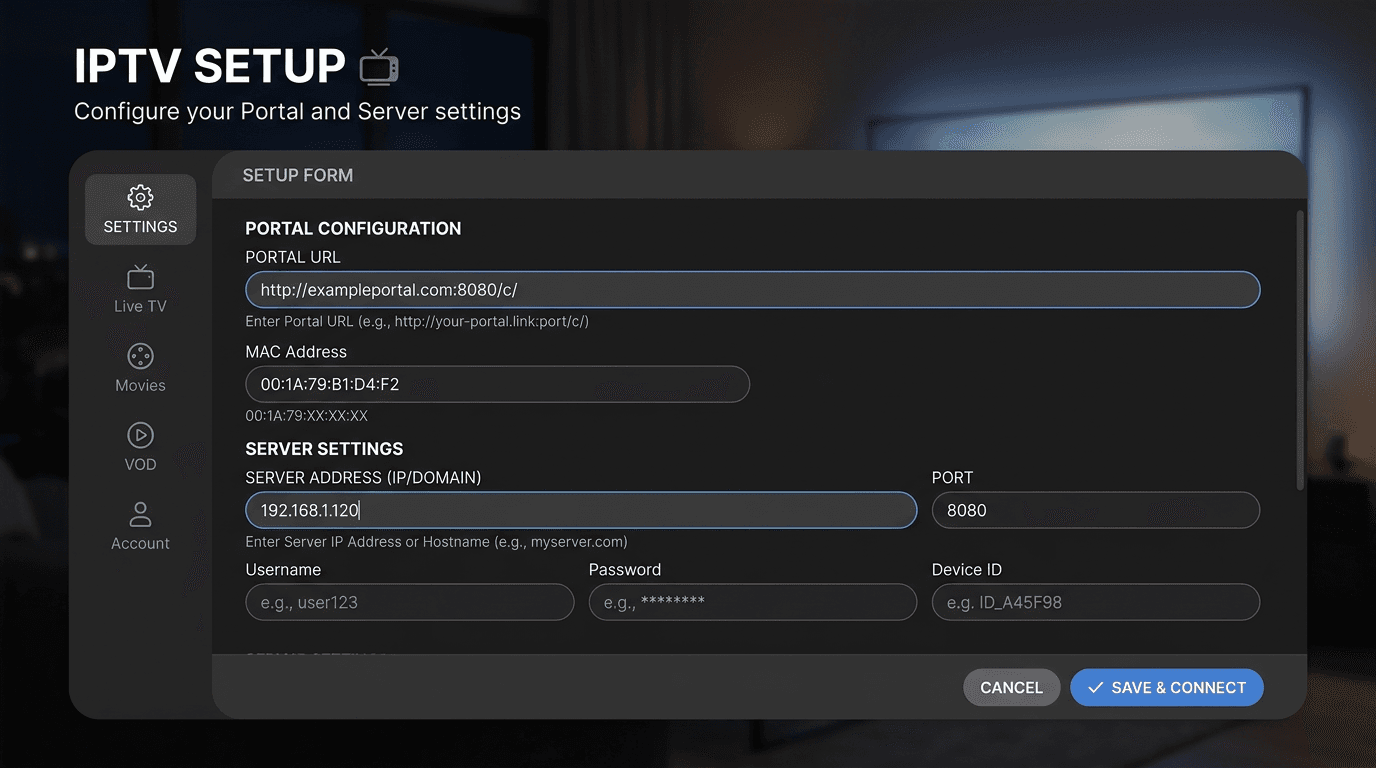
Navigate to the IPTV or portal configuration section. This may be under Setup → Tuner configuration, or via a plugin like ServiceApp. Enter your provider's portal URL. Some setups use bouquet editors (e.g. E2m3u2bouquet) to import M3U playlists.
Step 4
Restart the Receiver
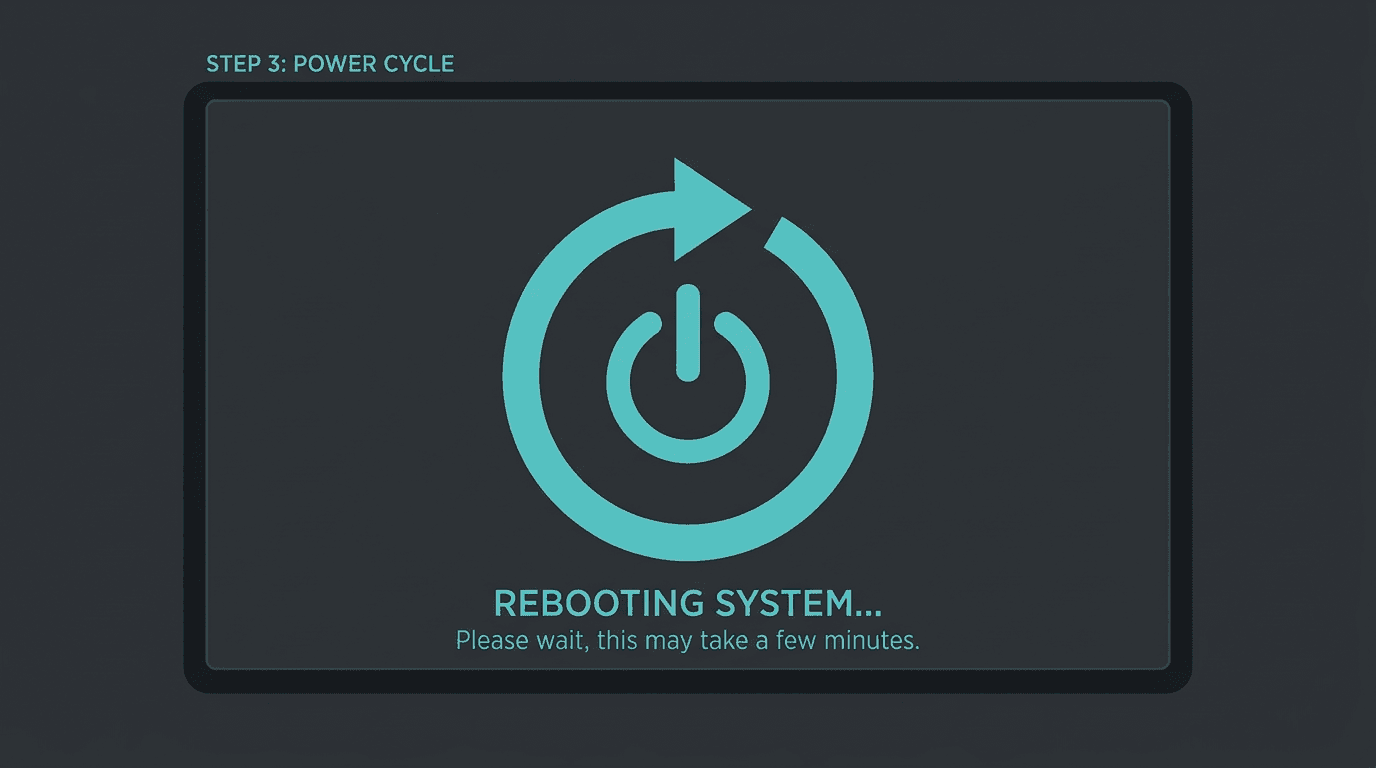
After entering the portal URL, restart the Enigma2 receiver. This applies the configuration and loads the channel list. Use Menu → Standby/Restart or power cycle the device.
Step 5
Access IPTV Channels
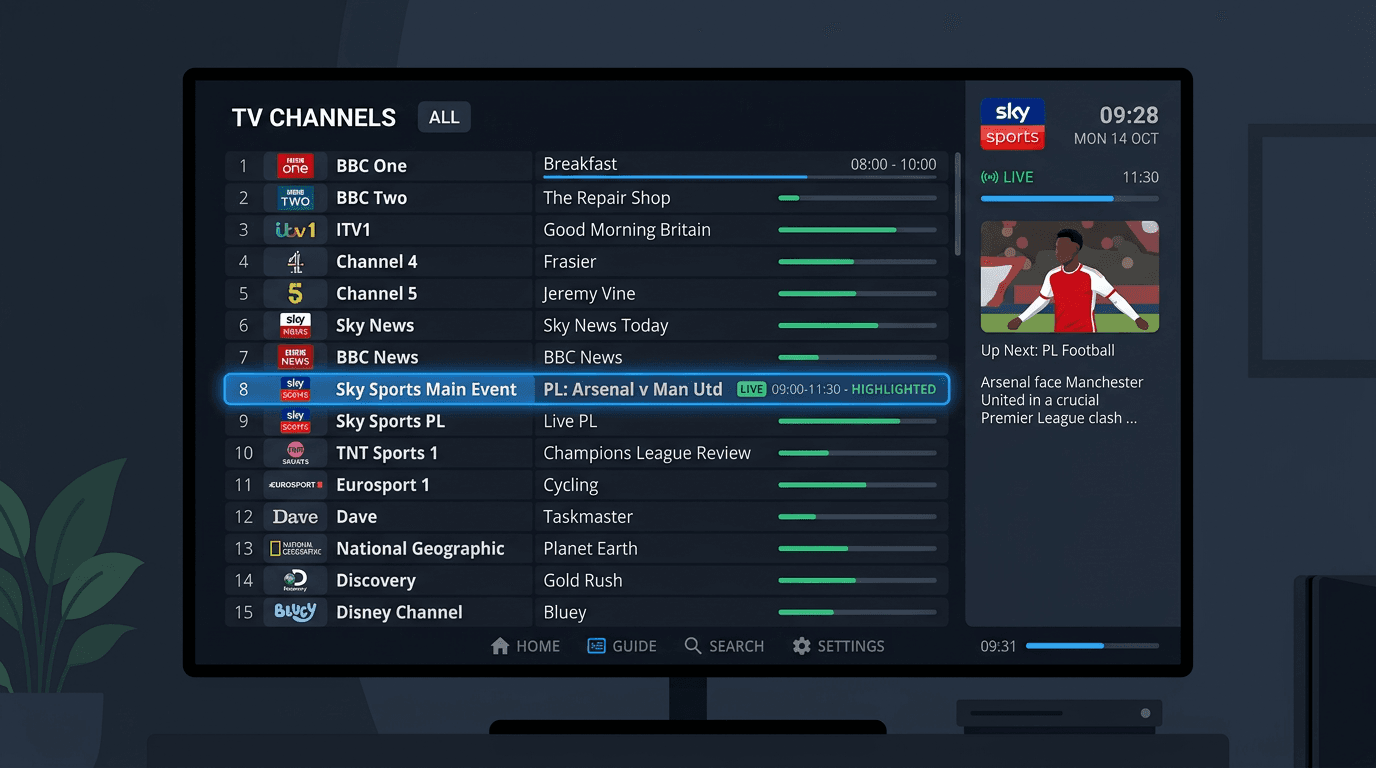
Once restarted, your IPTV channels should appear in the channel list or bouquets. Use the channel up/down buttons or EPG to browse. If channels do not appear, double-check the portal URL and contact your provider.
Troubleshooting and Tips
- Portal URL mistakes: Ensure the full URL is correct, including http:// or https://, port number, and path. One missing character can prevent channels from loading.
- MAC address: Some providers require MAC address registration. Find your receiver's MAC in the network settings and send it to your provider.
- Image differences: Menu paths vary between OpenATV, OpenVIX, and other images. If you cannot find the portal setting, search for your specific image name and "IPTV" or "portal" in user forums.
- Network: Ensure the receiver is connected via Ethernet or stable Wi-Fi. Weak connectivity can cause channel freezing or failed loads.
Related Setup Guides
Ready to Stream on Enigma?
Get an IPTV subscription with Enigma support and follow the steps above. Compare plans for UK channels and sports.
Enigma IPTV Setup FAQ
Find answers to common questions about IPTV subscription services, setup, and how the service works.