Chromecast Setup
How to Use IPTV with Chromecast
Last updated: October 2026
This guide explains how to watch IPTV with Chromecast. Chromecast does not run IPTV apps itself—you use an IPTV app on your phone or tablet and cast the video to your TV. Apps like IPTV Smarters and IBO Player support Chromecast. You will need a Chromecast device and an IPTV subscription.
UK IPTV setup — apps, Firestick, trial
UK IPTV setup is smoother when you line up the right device path, a trusted player app, and a simple way to trial before you commit. Useful next reads: start IPTV free trial UK, IPTV on Firestick UK, best IPTV for Firestick UK, and IPTV apps UK for Smart TV. When you want line-ups and pricing in one place, see our IPTV plans in the UK.
Watch Video Tutorial
Step-by-step walkthrough for setting up IPTV apps like IBO Player and casting to your TV.
Watch Video Tutorial
Step-by-step IPTV setup walkthrough on YouTube
Need an IPTV subscription? Compare plans for UK channels and sports.
View IPTV PlansRecommended Method: App-Assisted Casting
Install an IPTV app with Chromecast support on your phone—IPTV Smarters, IBO Player, or GSE Smart IPTV. Add your subscription, play a channel, and tap the Cast icon to send it to your Chromecast. Your phone stays in control: change channels, pause, or stop casting from the app. It is a simple way to get IPTV on any TV with Chromecast.
Explore Channels Inside the IPTV App
Preview how IPTV channels are organized inside the streaming app. Click Live TV, Movies, or Series to explore categories and see how the interface works before subscribing.

Prefer a native TV experience? See our Firestick, Android, or Smart TV guides.
Step-by-Step: Use IPTV with Chromecast
Step 1
Set Up Chromecast and Connect to Wi-Fi
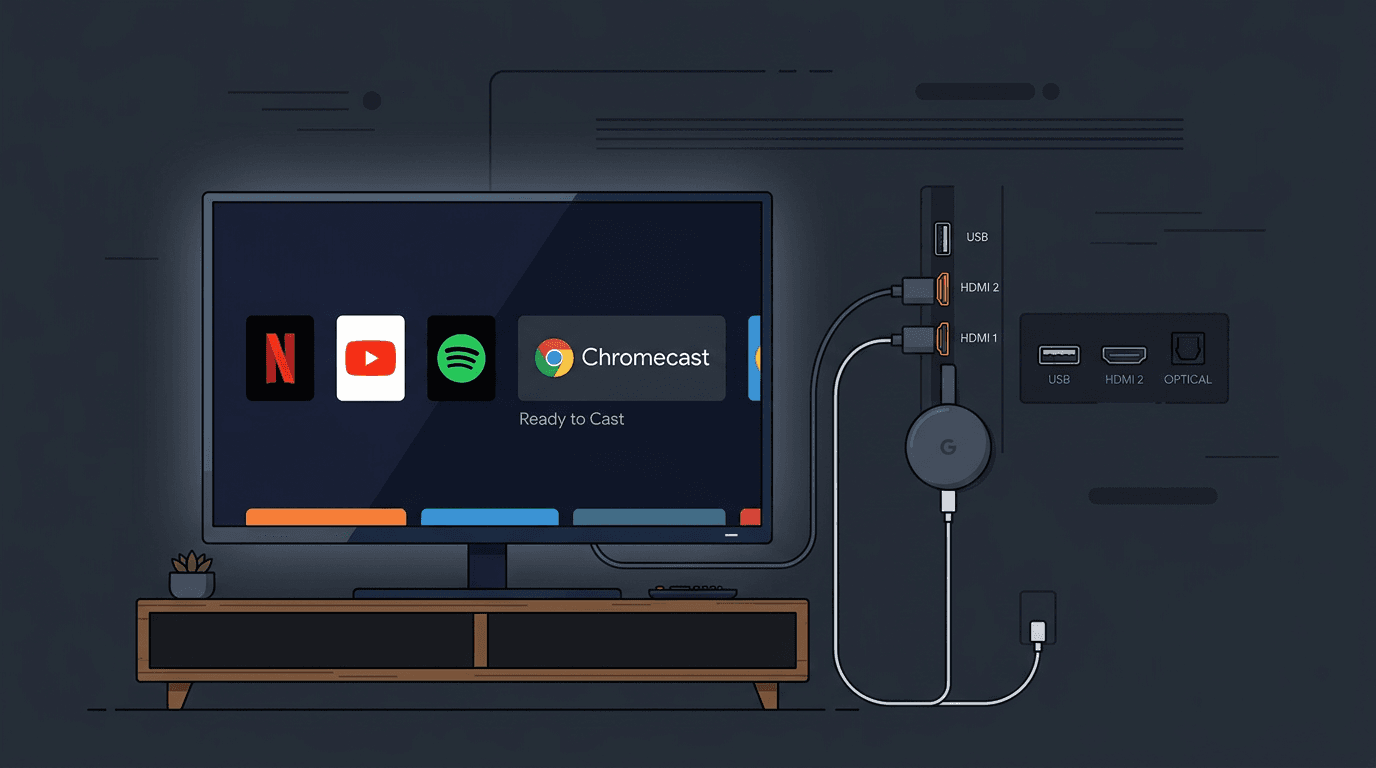
Plug your Chromecast into your TV's HDMI port and power it. Use the Google Home app on your phone to connect the Chromecast to your Wi-Fi network. Ensure your phone and Chromecast are on the same network.
Step 2
Install an IPTV App with Cast Support
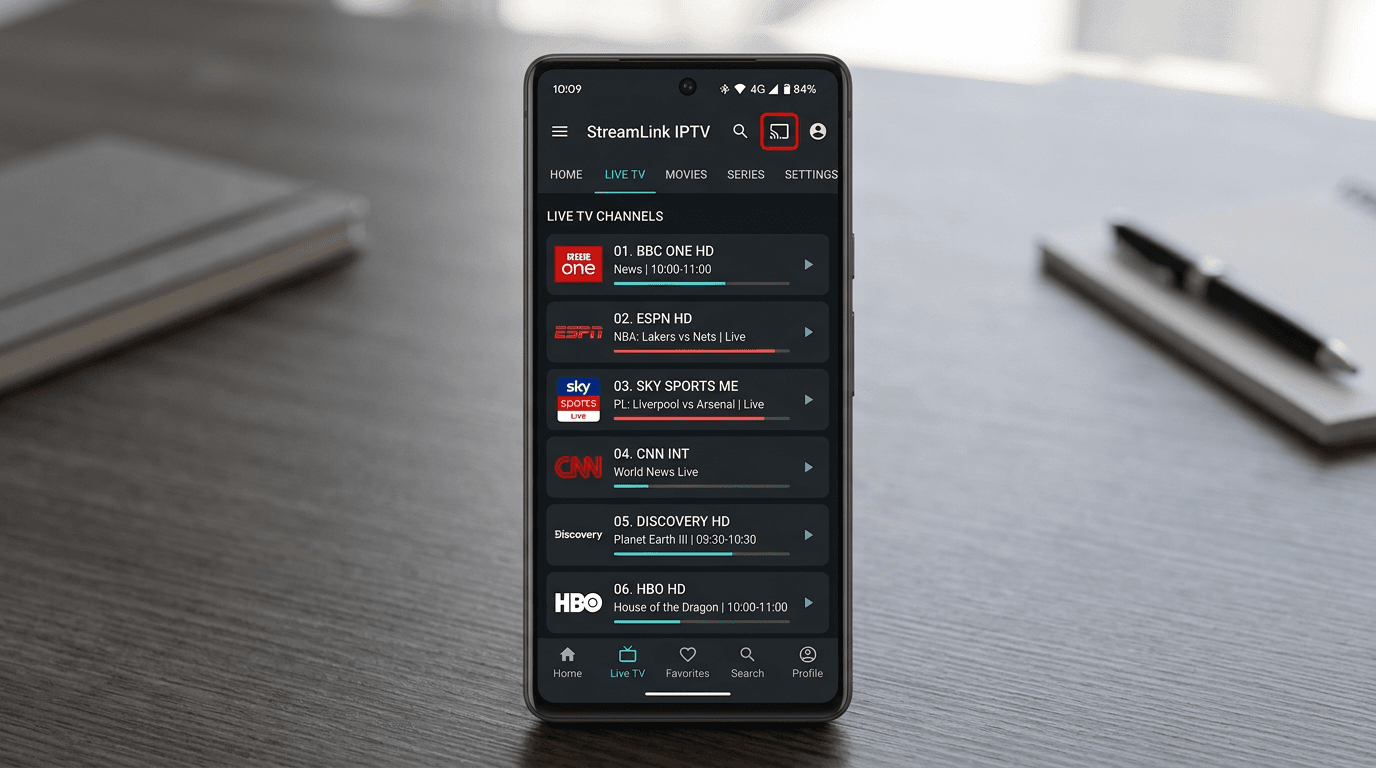
On your Android phone or iPhone, install an IPTV app that supports Chromecast. IPTV Smarters, IBO Player, and GSE Smart IPTV all have built-in cast support. Add your IPTV subscription credentials or M3U URL in the app.
Step 3
Open the IPTV App and Select a Channel
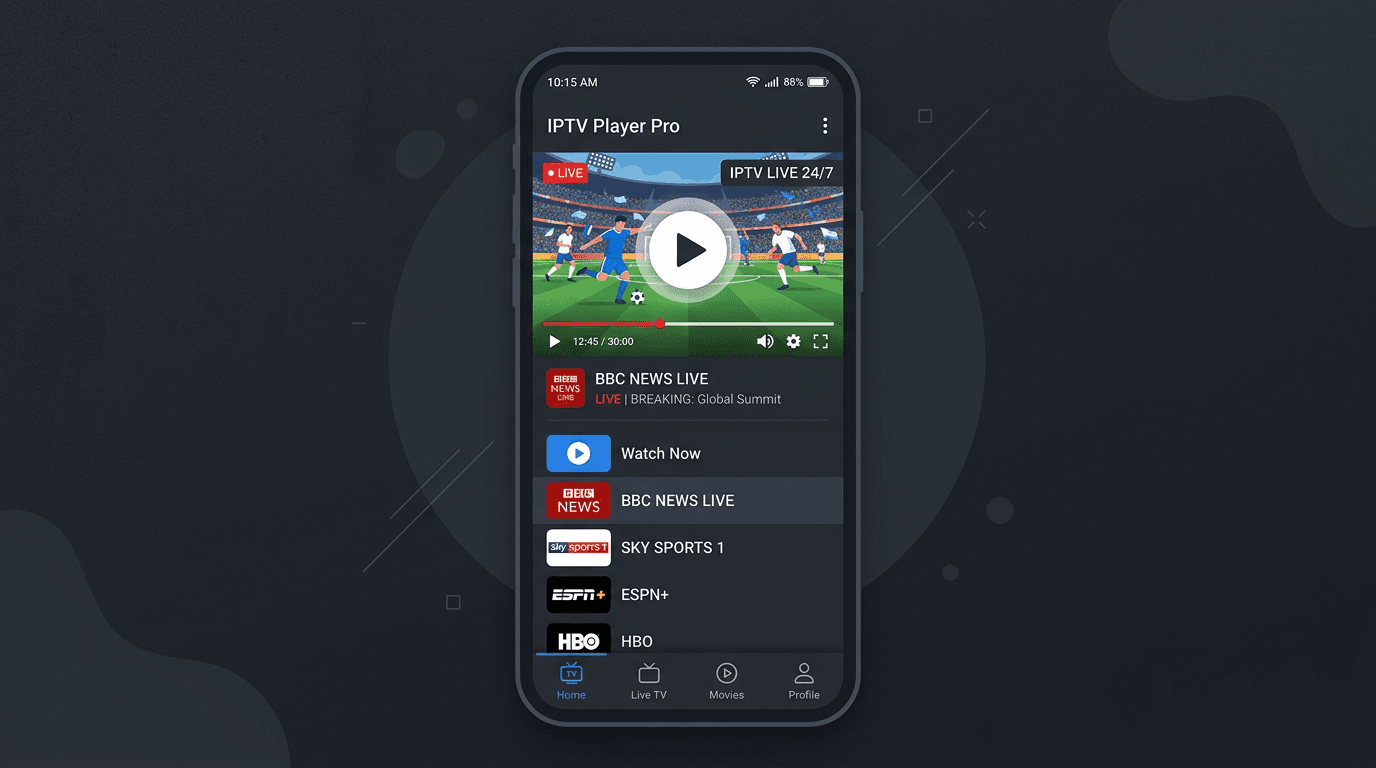
Launch your IPTV app and sign in if required. Browse to a channel and start playback. The video will initially play on your phone.
Step 4
Tap the Cast Icon
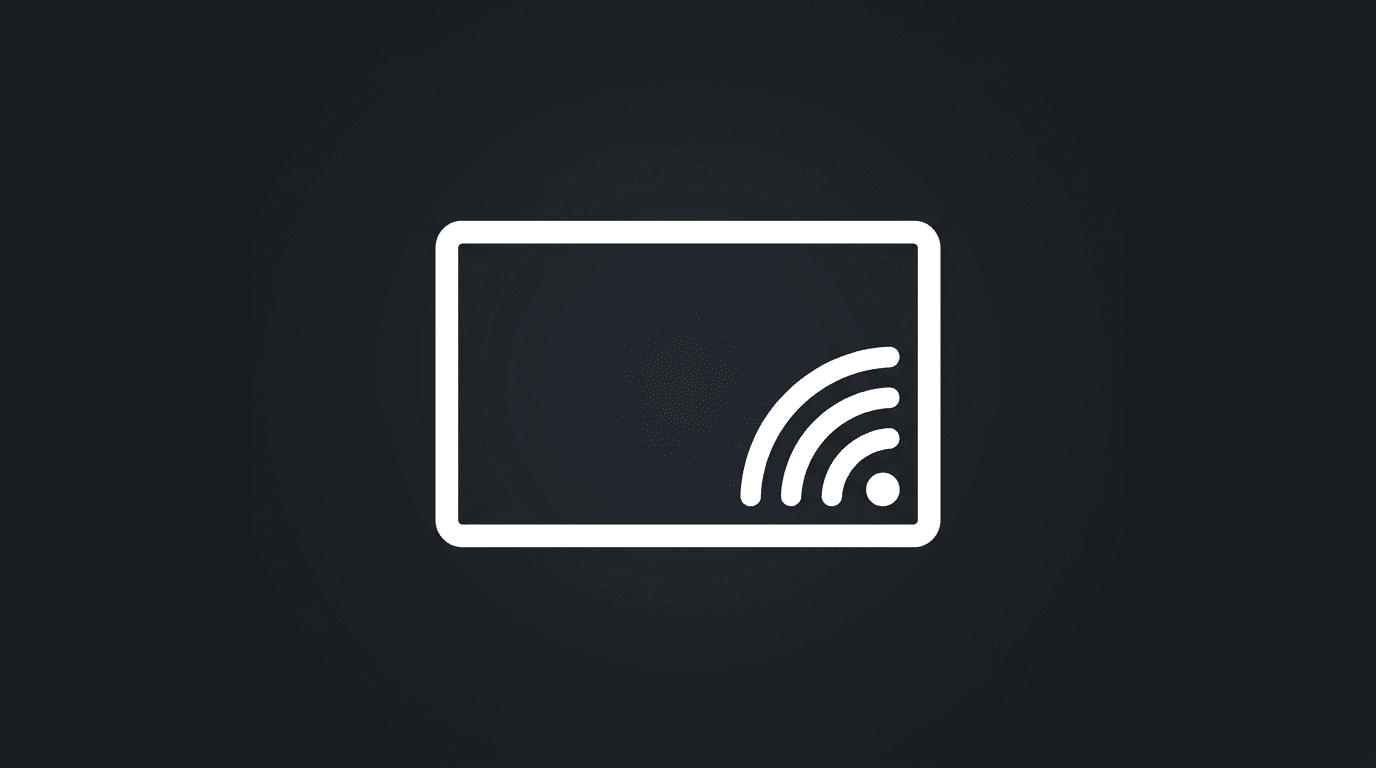
Look for the Cast icon (rectangle with Wi-Fi symbol) in the app's player or overlay. Tap it and select your Chromecast from the list. The video will switch to your TV. Your phone acts as the remote—pause, change channel, or stop casting from the app.
Step 5
Enjoy IPTV on Your TV
Your IPTV stream is now playing on the big screen. Use your phone to change channels, access the EPG, or stop casting when finished. For a more TV-centric experience with a physical remote, consider Firestick or Android TV.
Troubleshooting and Tips
- Chromecast not appearing: Ensure phone and Chromecast are on the same Wi-Fi. Restart both. Check that the Google Home app can see the Chromecast.
- Video stutters or buffers: Weak Wi-Fi can cause issues. Move the router closer or use 5GHz. Close other apps on your phone to free bandwidth.
- App compatibility: Not all IPTV apps support casting. Use IPTV Smarters, IBO Player, or GSE Smart IPTV. See our best IPTV apps guide.
- Login/playlist issues: Verify your IPTV credentials. Test playback on your phone before casting to rule out subscription problems.
Ready to Stream IPTV on Your TV?
Get an IPTV subscription, install a cast-compatible app, and follow the steps above. Compare plans for UK channels and sports.
IPTV with Chromecast FAQ
Find answers to common questions about IPTV subscription services, setup, and how the service works.