Kodi Setup
How to Set Up IPTV on Kodi
Last updated: October 2026
This guide explains how to set up IPTV on Kodi using add-ons like PVR IPTV Simple Client. Kodi is a free, open-source media player that runs on Windows, Android, Firestick, and more. You will need an IPTV subscription with an M3U playlist URL or Xtream Codes credentials.
Need an IPTV subscription? Compare plans with UK channels and sports.
View IPTV PlansRecommended Method: PVR IPTV Simple Client
PVR IPTV Simple Client is Kodi's official add-on for M3U playlists. It integrates with Kodi's Live TV interface, supports EPG, and is well-maintained. If your provider gives you an M3U URL, this is the standard approach. For Xtream Codes (username, password, server URL), some providers recommend dedicated add-ons—check your provider's instructions.
UK IPTV setup — apps, Firestick, trial
UK IPTV setup is smoother when you line up the right device path, a trusted player app, and a simple way to trial before you commit. Useful next reads: best IPTV for Firestick UK, IPTV apps UK for Smart TV, start IPTV free trial UK, and IPTV on Firestick UK. When you want line-ups and pricing in one place, see our IPTV plans in the UK.
Explore Channels Inside the IPTV App
Preview how IPTV channels are organized inside the streaming app. Click Live TV, Movies, or Series to explore categories and see how the interface works before subscribing.

Other devices? See our Firestick, Android, Smart TV, or Chromecast guides.
Step-by-Step: Set Up IPTV on Kodi
Step 1
Install Kodi on Your Device
Download and install Kodi from the official website or your device's app store. Kodi runs on Windows, macOS, Linux, Android, Android TV, and Firestick. Open Kodi once installed.

Step 2
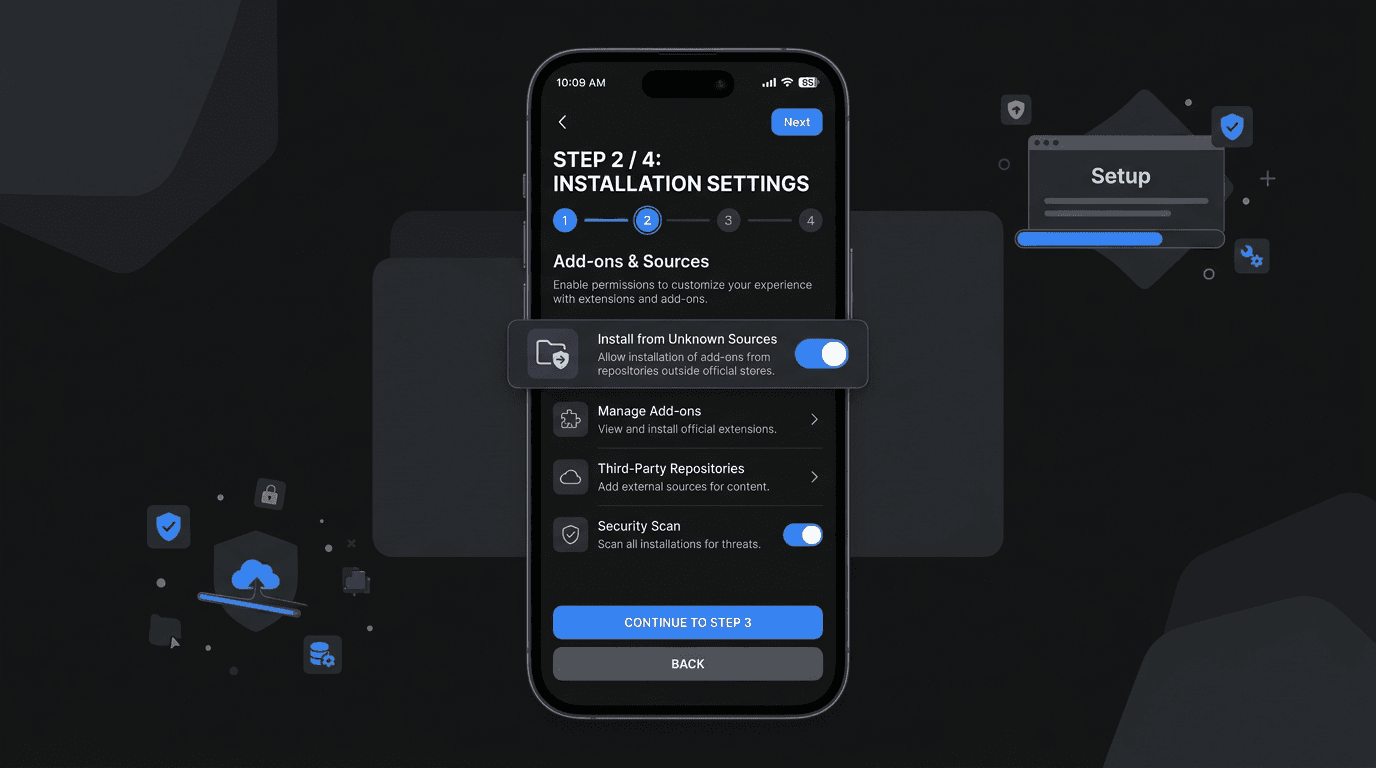
Enable Unknown Sources (If Required)
For add-on installations, go to Settings → System → Add-ons and enable 'Unknown sources'. On Firestick or Android, you may need to enable 'Apps from Unknown Sources' in device settings first.
Step 3
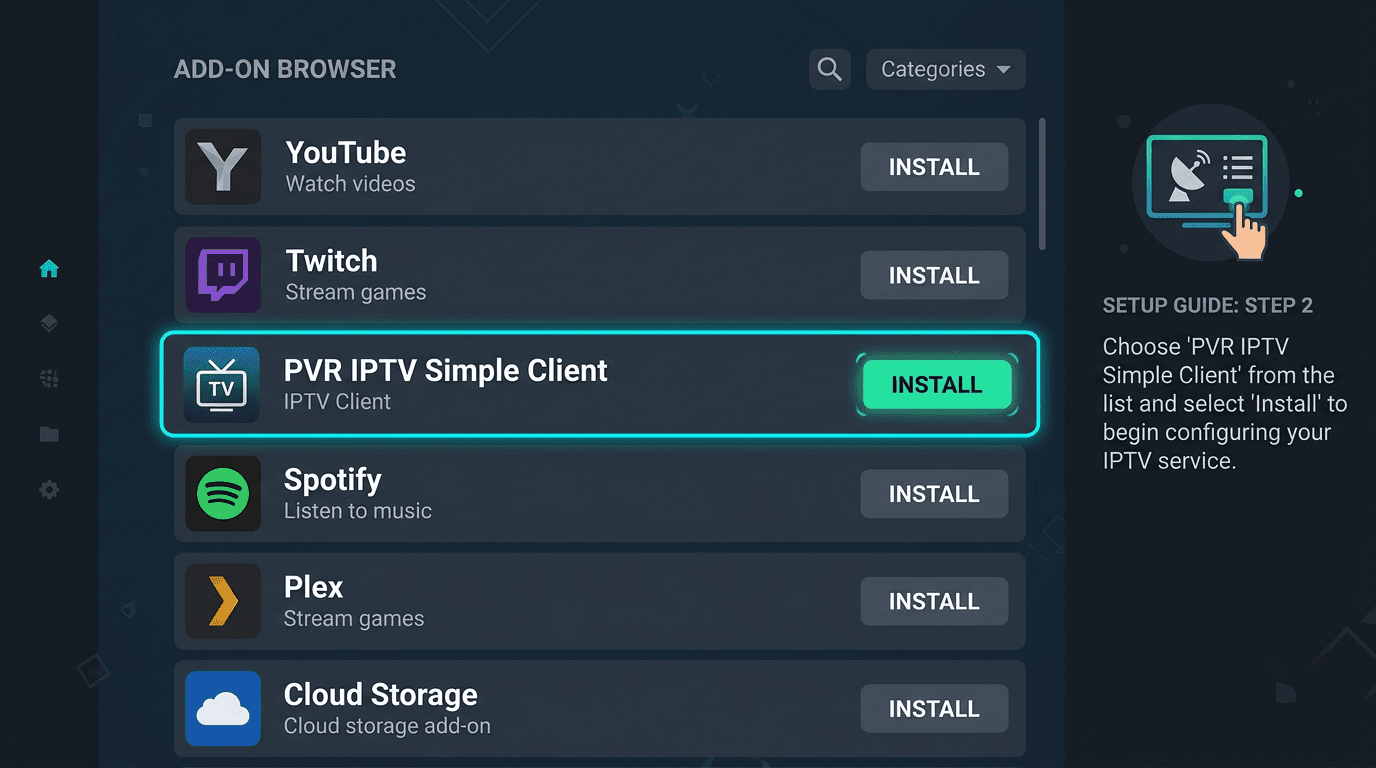
Install PVR IPTV Simple Client
In Kodi, go to Add-ons → Add-on browser → Kodi Add-on repository → PVR clients. Find 'PVR IPTV Simple Client', click Install, and wait for the add-on to be enabled.
Step 4
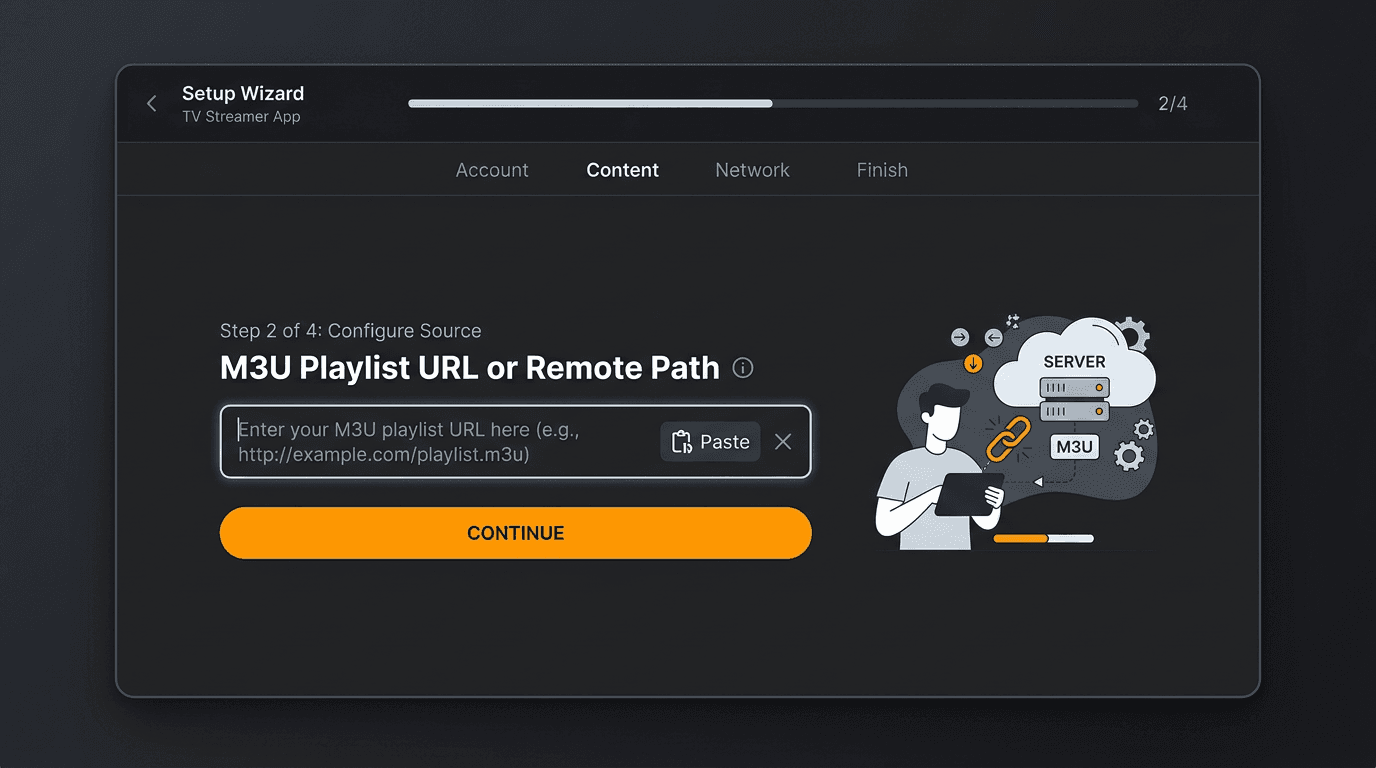
Configure Your IPTV Playlist
Open PVR IPTV Simple Client settings. Under 'General', set Location to 'Remote path (Internet address)' and paste your M3U playlist URL from your IPTV provider. If your provider uses Xtream Codes, use a compatible add-on instead.
Step 5
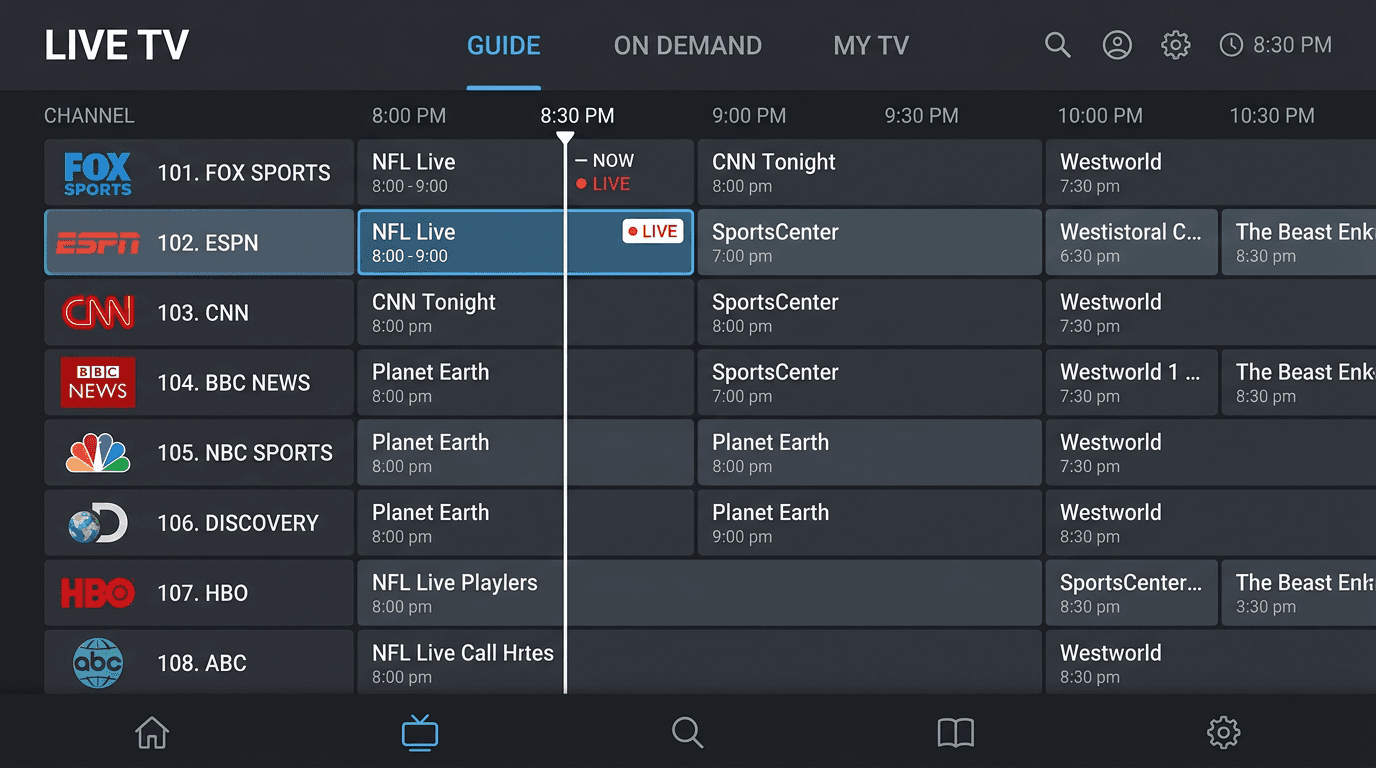
Enable and Start Watching
Enable the PVR client in Settings → PVR & Live TV. Your channel list will load. Go to Live TV in the main menu to browse and watch channels. Use the EPG if your provider supplies it.
Troubleshooting and Tips
- Playlist not loading: Verify the M3U URL is correct and accessible. Test it in a browser; it should download or display channel data. Ensure no extra spaces in the URL.
- EPG missing: Some providers supply a separate EPG URL. Add it in PVR IPTV Simple Client settings under Electronic Program Guide.
- Channels freeze: Check your internet speed (10+ Mbps for HD). Restart Kodi and your router. Try reducing buffer size in add-on settings.
- Login/portal errors: For Xtream Codes, double-check username, password, and server URL. Some add-ons require the full URL including http:// or https://.
Related Setup Guides
Ready to Stream on Kodi?
Get an IPTV subscription and follow the steps above. Compare plans to find one that works with Kodi.
Kodi IPTV Setup FAQ
Find answers to common questions about IPTV subscription services, setup, and how the service works.