Roku Setup
How to Watch IPTV on Roku
Last updated: October 2026
This guide explains how to watch IPTV on Roku. Roku has limited native IPTV app support compared to Firestick or Android TV. We cover the screen mirroring workaround and when to consider alternatives for the best viewing experience.
Roku Limitation
Roku does not allow sideloading IPTV apps. You cannot install IPTV Smarters, TiviMate, or similar apps directly on Roku. Screen mirroring from a phone or tablet is the main workaround. For direct IPTV setup, Firestick or Android TV are more suitable.
Need an IPTV subscription? Compare plans for UK channels and sports.
View IPTV PlansRecommended Method: Screen Mirroring
The most practical way to watch IPTV on Roku is to install an IPTV app on your Android phone or tablet, then screen mirror to the Roku. Your phone becomes the source; the TV displays the content. It works but is less seamless than a native TV app. If you plan to use IPTV regularly, a Firestick or Android TV box usually offers a better experience.
UK IPTV setup — apps, Firestick, trial
UK IPTV setup is smoother when you line up the right device path, a trusted player app, and a simple way to trial before you commit. Useful next reads: start IPTV free trial UK, IPTV on Firestick UK, best IPTV for Firestick UK, and IPTV apps UK for Smart TV. When you want line-ups and pricing in one place, see our IPTV plans in the UK.
Explore Channels Inside the IPTV App
Preview how IPTV channels are organized inside the streaming app. Click Live TV, Movies, or Series to explore categories and see how the interface works before subscribing.

Prefer direct app support? See our Firestick, Android, or Chromecast guides.
Step-by-Step: Watch IPTV on Roku via Mirroring
Step 1
Understand Roku Limitations
Roku does not support sideloading IPTV apps like Firestick or Android TV. Your options are: (1) screen mirror from a phone/tablet with an IPTV app, or (2) use a Roku channel if your IPTV provider offers one. This guide focuses on the mirroring workaround.
Step 2
Install an IPTV App on Your Phone or Tablet
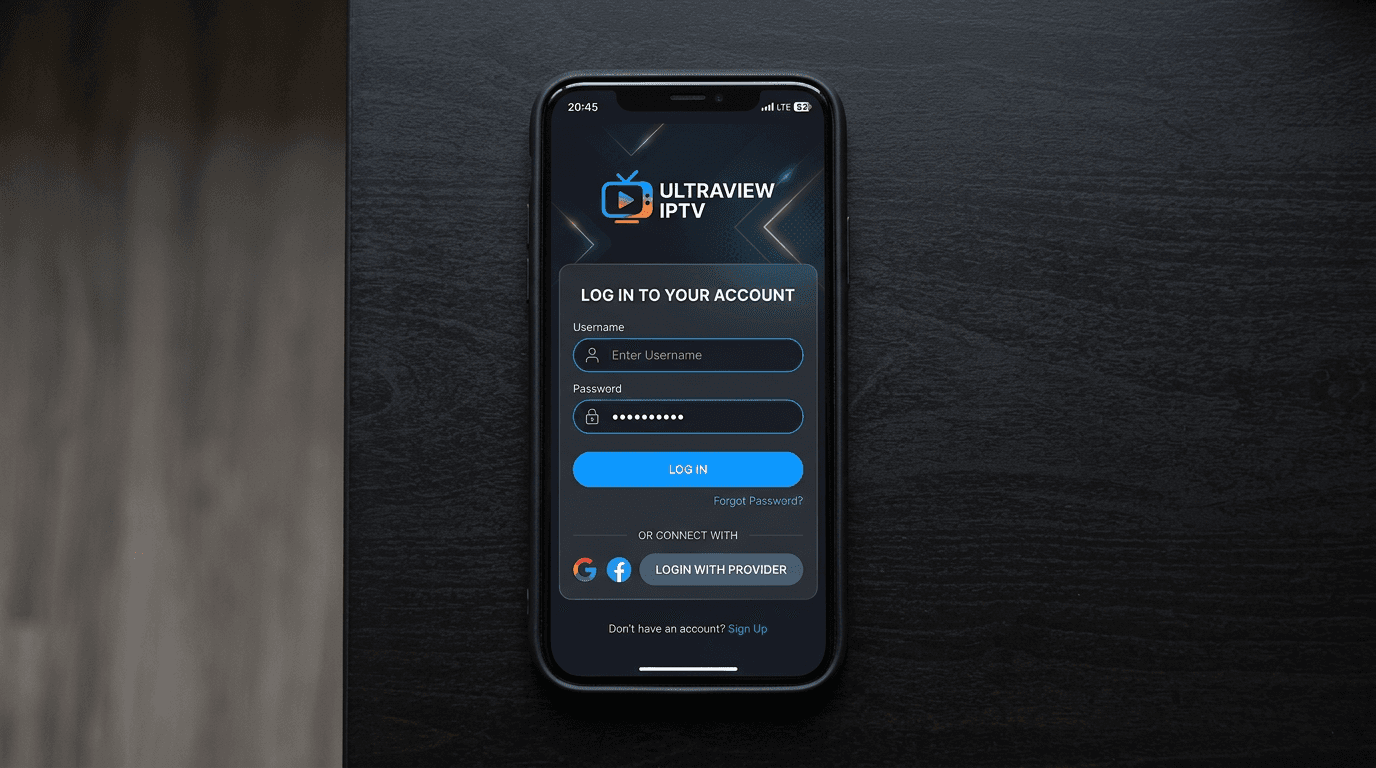
On Android: install an IPTV app such as IPTV Smarters, GSE Smart IPTV, or IBO Player from the Play Store or APK. On iPhone: use IPTV Smarters or GSE Smart IPTV from the App Store. Add your subscription credentials or M3U URL.
Step 3
Enable Screen Mirroring on Roku
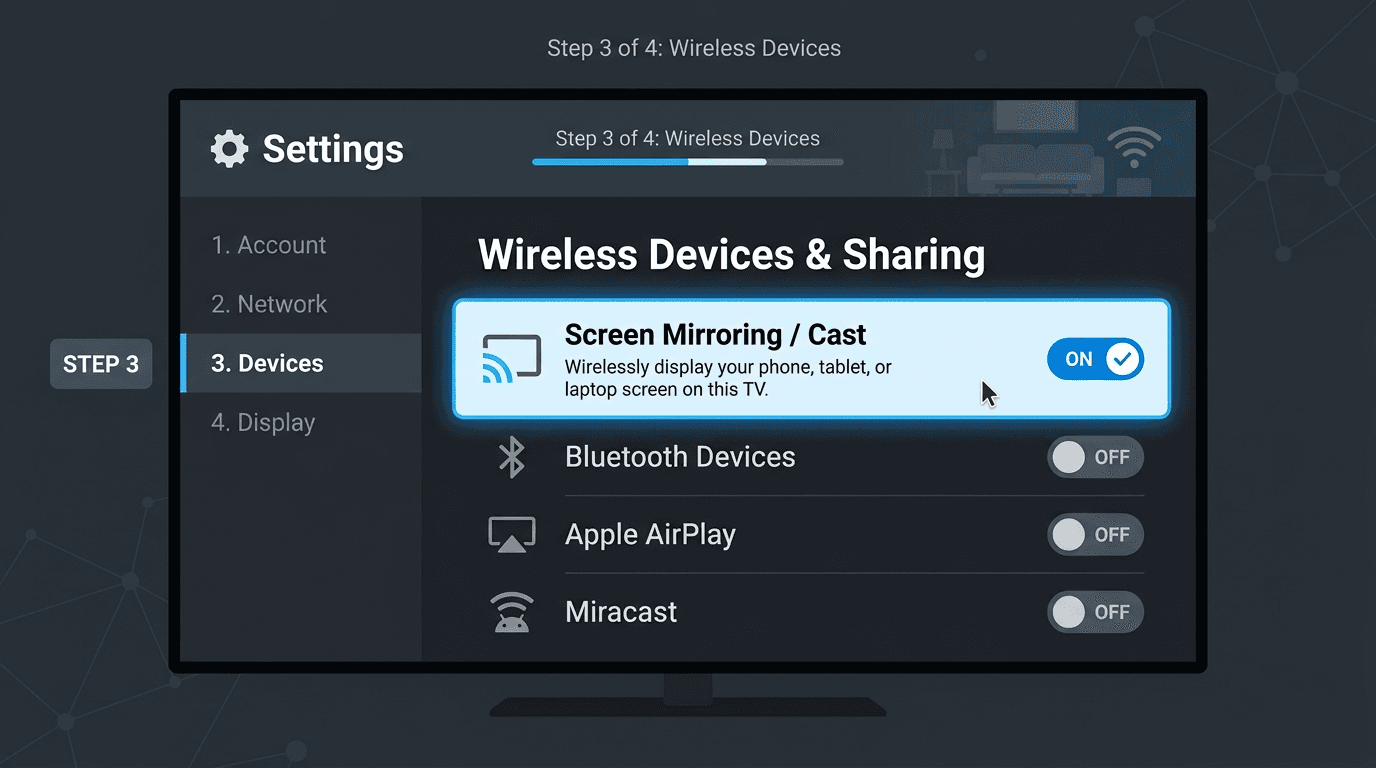
On your Roku: go to Settings → System → Screen mirroring. Set to Prompt or Always allow. Your phone or tablet will detect the Roku when you start mirroring.
Step 4
Connect Your Device to Roku
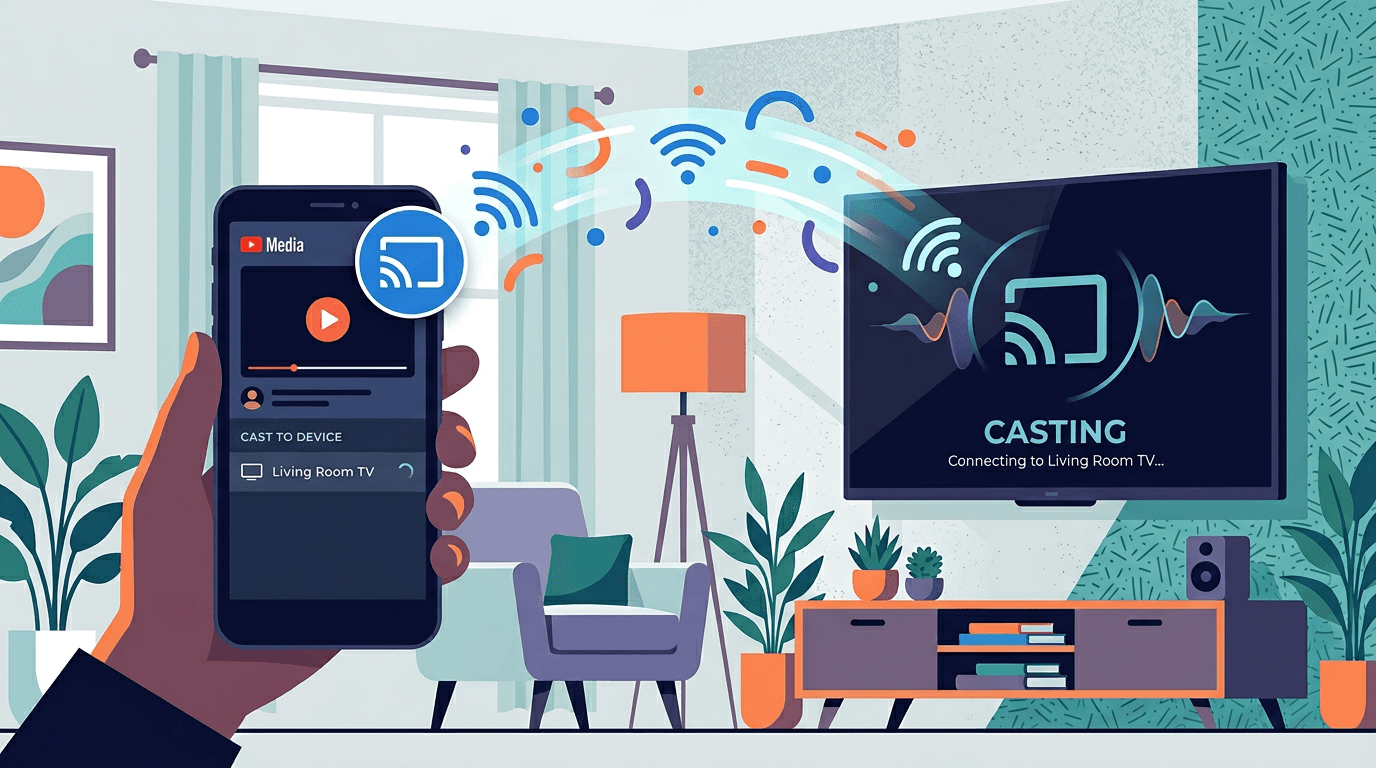
On Android: open Quick Settings and tap Cast or Screen mirror. Select your Roku. On iPhone: use AirPlay if your Roku supports it, or use an Android device for mirroring. Ensure both devices are on the same Wi-Fi network.
Step 5
Open Your IPTV App and Watch
Launch your IPTV app and play a channel. The video will appear on your TV via screen mirroring. Note: the entire phone screen is mirrored, so navigation may feel different than a native TV app. For a more TV-friendly experience, consider Firestick or Android TV.
Troubleshooting and Tips
- Roku not appearing when mirroring: Ensure Roku and phone are on the same Wi-Fi. Restart both devices. Check that Screen mirroring is enabled in Roku Settings → System.
- Video stutters or lags: Screen mirroring uses more bandwidth. Move closer to the router, use 5GHz Wi-Fi, and close other apps on your phone.
- IPTV app not loading on phone: Verify your subscription is active and credentials are correct. Try a different IPTV app (IPTV Smarters, GSE) to rule out app-specific issues.
- Consider Firestick: If mirroring is unsatisfactory, a Firestick (£30–50) gives native IPTV app support with a simpler setup. See our Firestick guide.
Related Setup Guides
- How to Install IPTV on Firestick — Direct app support
- How to Install IPTV on Android
- How to Use IPTV with Chromecast — Cast from phone to TV
- Best IPTV Apps
- All Setup Guides
Ready to Stream IPTV?
Get an IPTV subscription and set up on your preferred device. Firestick and Android TV offer the smoothest IPTV experience.
Roku IPTV FAQ
Find answers to common questions about IPTV subscription services, setup, and how the service works.